MacBook Overheating: Causes and Solutions
A hot MacBook can be caused by dust, old thermal material, battery stress, software load or a board-level fault. The right fix depends on the pattern.
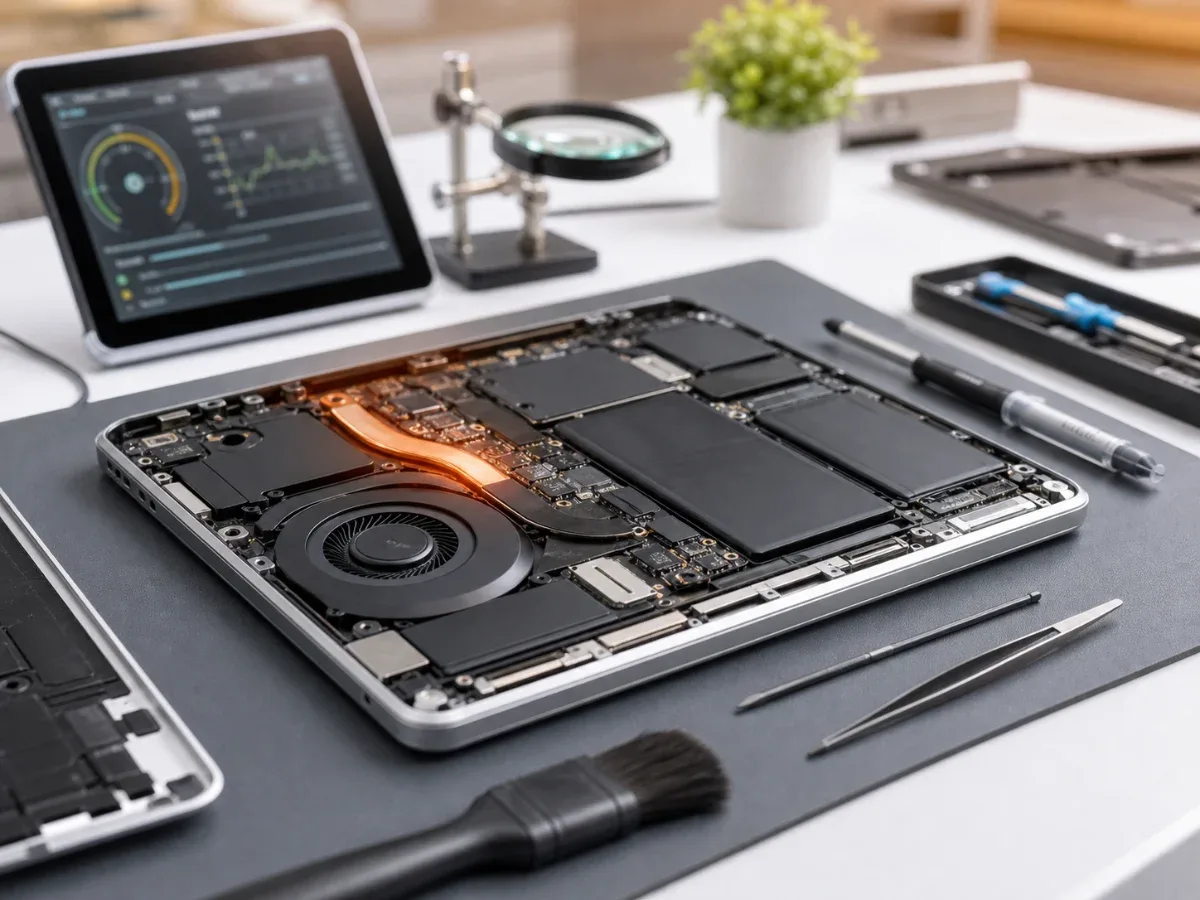
MacBook overheating is not one single problem. The same symptom can come from blocked airflow, dust inside the cooling system, old thermal material, a battery under stress, heavy background processes or board-level power issues. The useful question is when heat is normal and when it means the computer needs service.
When heat is normal
A MacBook can become warm during video export, gaming, large browser sessions, development tools, backups, Spotlight indexing or the first hours after a macOS update. Apple silicon models can feel quiet even under load, while Intel models often run fans loudly. Temporary heat during heavy work is not automatically a fault. The warning sign is heat during light use: one browser tab, mail, documents or idle desktop. If fans run constantly, the bottom case becomes uncomfortable, performance drops, or the MacBook shuts down, the problem deserves attention.
Software checks before repair
Open Activity Monitor and sort by CPU and Energy. A stuck browser tab, cloud sync, antivirus tool, video call app or indexing process can keep the processor awake. Restart the MacBook and test again with fewer apps. Also check free storage; a nearly full drive can make macOS work harder. If the problem started after installing a new app or update, give the system a short stabilization window, then test. If heat remains with normal activity, software is less likely to be the full explanation.
Hardware causes
Dust is common on older machines, especially when the MacBook is used on fabric, in workshops or in coastal environments. Dust blocks airflow and forces fans to run harder. Old thermal material can also reduce heat transfer from the chip to the heatsink. Battery condition matters too. A swollen or failing battery can create heat and pressure inside the case. If the trackpad feels raised, the bottom case bulges, or runtime is very short, do not keep using the laptop. A battery issue should be checked before it damages other parts. Some symptoms point deeper.
Sudden shutdowns, no charging, USB-C instability, liquid history or heat in one small area can indicate board-level repair rather than simple cleaning. In that case, a technician should inspect the MacBook before promising a basic service.
What EPPY checks
A proper check looks at temperature behavior, fan response, battery status, charging, liquid indicators, previous repair signs and performance under load. If the issue is routine maintenance, cleaning and thermal service may help. If battery or board symptoms appear, the repair path changes.
What not to do
Do not block vents with soft surfaces. Do not spray compressed air blindly into the keyboard or ports if you do not know where the dust will go. Do not ignore swelling signs. And do not run heavy stress tests repeatedly if the MacBook is already shutting down from heat.
How to tell when it is more than normal heat
If the MacBook cools down after closing heavy tasks and then behaves normally, the cause is usually workload or overdue cooling maintenance. If heat returns after a clean restart, appears while charging with no real apps open, comes with smell, clicking, screen dimming or USB-C instability, online cooling tips are no longer enough. For service, the details matter: when it started, whether the battery was replaced, whether liquid was involved, how the fans behave and whether the issue changes between wall power and battery power. A clear pattern makes it much easier to separate routine cleaning from battery, charging or board repair.
Bottom line
MacBook heat is normal under real load, but not during simple work. Start with Activity Monitor, restart, storage and recent software changes. If the heat continues, fans are constant, battery symptoms appear or the machine shuts down, diagnostics is the safer path. The repair may be cleaning, battery service or deeper board work, and the pattern decides which one is correct. For the next step, compare the price list with MacBook repair services. The repair logic is the same for every service area: diagnose the fault, confirm the repair path and test the computer after service.
Read next
Back to Blog
Original vs Aftermarket Parts: What You Need to Know
A clear comparison of original and aftermarket repair parts for iPhone and Apple devices, including screens, batteries, price and reliability.

Why iPhone Gets Hot While Charging: What to Check Before Repair
A practical guide to iPhone heat during charging: charger, port, battery, software load and board-level warning signs.

How to Extend Your iPhone Battery Life
A practical guide to making an iPhone battery last longer, recognizing real wear and knowing when replacement or diagnostics makes more sense than another settings change.