How to delete corrupted apps on iPhone: what actually works
If an app on iPhone is stuck on Waiting, crashes immediately, or refuses to disappear from the Home Screen, the problem is usually tied to a broken install, a failed update, iPhone storage, or restrictions inside Screen Time. The fix is often simpler than people expect, but the order matters.
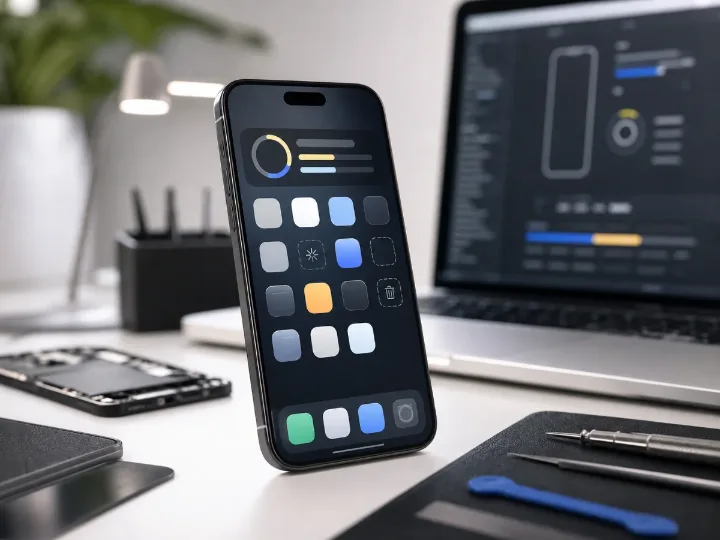
Corrupted apps on iPhone rarely mean the whole device is broken. In most cases, the app itself got stuck somewhere between download, install, verification, update, or sync. That is why the icon can look dimmed, stay forever on Waiting, crash on launch, or ignore the usual delete gesture.
How to recognize a damaged or stuck app
- The icon stays faded out or permanently shows a loading circle.
- The app opens and closes immediately.
- You only see “Remove from Home Screen,” but not “Delete App.”
- The install never finishes, even on stable Wi-Fi.
- The app disappears from one place but still shows up in iPhone Storage.
Why this happens
| Common cause | What it does | Typical sign |
|---|---|---|
| Interrupted download or update | Leaves the app half-installed | Waiting status, dimmed icon, endless loading |
| Low free storage | iPhone cannot complete install or app unpacking | Update stalls, app opens badly, system feels cramped |
| iOS and app conflict | Old app build stops behaving correctly after system changes | Immediate crashes after update |
| Screen Time restrictions | Blocks deletion entirely | No Delete App option appears |
| Account or sync glitch | Purchase or download state does not refresh cleanly | App keeps reappearing or refuses to complete install |
Step 1. Try normal deletion, but choose the right option
On recent iOS versions, long-pressing an icon can show both Remove App and Remove from Home Screen. These are not the same thing. If you choose only Remove from Home Screen, the app remains installed and simply moves to the App Library. For a truly broken app, you need the full delete path.
- Long-press the app icon.
- Tap Remove App.
- Then choose Delete App, not just Remove from Home Screen.
If the app is only half-visible or stuck, go to the App Library or use search to make sure you are deleting the real installed entry.
Step 2. Restart the iPhone and try again
A restart is still one of the most effective fixes for apps stuck in Waiting or half-installed states. It forces iOS to rebuild the temporary app state and clears a lot of short-lived background glitches that can stop deletion from completing.
- On iPhone with Face ID: press and hold the side button and either volume button, then drag the power slider.
- On iPhone with a Home button: press and hold the side or top button until the power slider appears.
- After the phone starts again, try deleting the app one more time.
Step 3. Delete or offload the app through iPhone Storage
This is the most reliable built-in method when the Home Screen icon behaves badly. iOS often still lists the app correctly inside storage even when the icon on the Home Screen is broken.
- Open Settings → General → iPhone Storage.
- Wait for the full app list to load.
- Find the damaged app.
- Choose Delete App for a full removal.
You may also see Offload App. Offloading removes the app itself but keeps its documents and data. That is useful when the app is healthy and you just need space. For a genuinely corrupted app, full deletion is usually the better move.
Step 4. Check whether Screen Time is blocking deletion
One of the most overlooked reasons is Screen Time. If app deletion is restricted there, iPhone may simply hide the Delete App option, which makes the problem look deeper than it really is.
- Open Settings → Screen Time.
- Go to Content & Privacy Restrictions.
- Open iTunes & App Store Purchases.
- Check Deleting Apps and make sure it is set to Allow.
Step 5. Update iOS and re-download the app cleanly
If the app broke after a system update, or if it keeps crashing after reinstall, the next move is to update iOS and then download the app again from the App Store. Apple's own support flow for apps that stop responding also points users toward restart, update, and reinstall before drastic recovery steps.
- Connect to Wi-Fi.
- Open Settings → General → Software Update.
- Install any available iOS update.
- Then open the App Store and download the app again.
Step 6. Sign out of Apple ID only if the problem looks account-related
This is not a first-line fix, but it can help when the app keeps reappearing, refuses to finish installing, or the download state appears stuck around purchases and cloud sync. If the issue affects only one broken app, start with storage and deletion first; do not jump straight here.
The biggest mistake is escalating too early. For most broken app cases, iPhone Storage and Screen Time solve more than computer-based workarounds ever will.
What is outdated or not worth trying first
- Hiding an app from purchase history is not the same as deleting it from the iPhone.
- Old iTunes-style app management is not the normal deletion workflow for modern iPhone.
- DFU or full device restore is too aggressive for a single bad app unless the whole system has become unstable.
When you may need service help
- Multiple apps fail in the same way.
- The iPhone also has storage errors, reboot loops, or update failures.
- Apps cannot be removed even from iPhone Storage.
- The phone behaves abnormally after beta software, jailbreak history, or failed restores.
Editorial takeaway
When an app refuses to delete, the fastest path is usually: confirm you are choosing Delete App, restart the iPhone, remove it through iPhone Storage, check Screen Time restrictions, then update iOS and reinstall cleanly. That sequence is current, realistic, and much safer than rushing into drastic recovery methods meant for whole-device failures.
Read next
Back to Blog
Why your smartphone slows down: 4 proven fixes
Smartphone slowdowns usually come from thermal throttling or an aging battery. Here is how to tell the difference and what four steps actually help.

GTA 6 budget is staggering: it may already be bigger than Burj Khalifa
A new estimate based on Rockstar's public financial footprint suggests GTA VI may already sit above the 3 billion dollar mark, putting the game in the same scale conversation as global megaprojects.
Huawei borrows from Apple: Pura X2 may get an unexpected camera redesign
Huawei may redesign the Pura X2 with a wide horizontal camera bar, making the foldable feel closer to Apple's recent visual direction.